Dental lab case tracking, from prescription to delivery
“Is it ready yet?” For most clinics and labs, dental lab case tracking still means that phone loop — a call, a “let me check”, a call back — and a scroll through an endless WhatsApp thread. LabCaseBook replaces it with one structured case per restoration and one live status both sides watch on the same screen, from New case to Confirm fit & close.
- One live status shared by clinic and lab — updates by itself, no refreshing
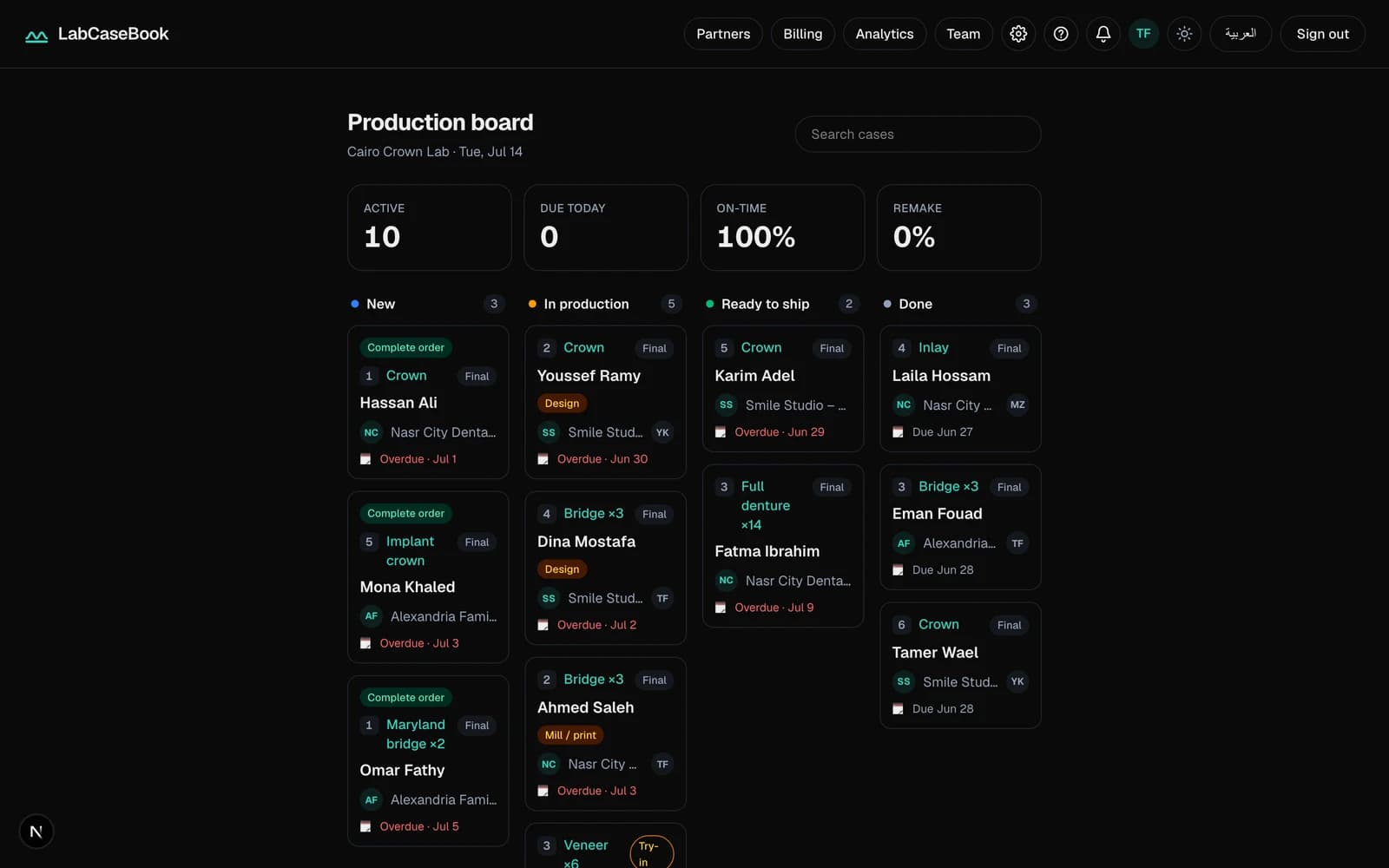
- A kanban Production board for the lab, with Due today and On-time tiles
- Append-only case History — who did what, when, forever
- Optional patient link with a friendly 4-step progress bar — revocable anytime
Last updated July 3, 2026
Where cases get lost today
A busy lab runs dozens of cases at once, and each lives as fragments in a chat: the Rx in a voice note, the shade in a compressed photo, the due date buried 300 messages up. Nobody can see a case's state — so everybody calls.
- The clinic calls to ask; the lab walks to the bench to check; someone forgets to call back.
- “Ready” lands in a thread the dentist reads six hours later — after the patient came and left.
- When a case slips, there is no record of when it was sent or what was promised — only memory against memory.
How dental lab case tracking works, step by step
One case = one restoration — prescription, photos, chat, and status together. The whole journey:
- 1The clinic taps New case and fills the digital Rx — teeth on the FDI chart, restoration type, material, shade, and the due date.LabCaseBook blocks sending until every required field is filled, so the lab never receives half an order.
- 2Shade photos go on the case with Add photos — stored byte-for-byte, each carrying a Full resolution badge.
- 3The clinic taps Send to lab — the case lands in the lab's New column as Submitted.
- 4The lab reviews the Rx and photos, then taps Start production — the clinic's screen switches to In production on its own.Questions go in the case Messages thread — attached forever.
- 5Work finished and QC passed, the lab taps Mark ready — the clinic is notified instantly.
- 6On fit day the clinic taps Confirm fit & close and the case becomes Closed — or requests a remake, recorded with its reason and attempt number.
One status, two screens
The pipeline is fixed and shared: lab and clinic see the same status in the same second, and the page updates by itself — no refreshing, no “status?” texts.
| Status | What it means |
|---|---|
| Draft | The clinic is still preparing the case — invisible to the lab. |
| Submitted | On the lab's board, waiting for Start production. |
| In production | The lab is making the restoration. |
| Ready | Finished — the clinic books the patient with confidence. |
| Shipped | Optional: the lab marks it out for delivery with Mark shipped. |
| Closed | Fitted and confirmed. Done. |
The lab's day on one board
For a lab, tracking is never one case — it's forty at once. The Production board shows every case as a card in four live columns: New, In production, Ready to ship, and Done. Each card carries the due date — Due today in amber, Overdue in red — plus restoration, clinic, and technician initials.
Above the columns, live tiles sum up the morning at a glance: Active, Due today, On-time, and Remake. Search cases pulls up any case by number, patient, clinic, restoration, or shade.
A history nobody can rewrite
Every send, status change, remake request, and upload lands in the case's History — with who did it and when. Entries can't be edited or deleted by anyone, on either side.
That's what turns tracking into trust: when a delivery date or a remake is disputed months later, the answer doesn't go to whoever shouts loudest — it's written on the case.
Let the patient track it too
On any sent case, the clinic can tap Create link under Patient tracking link and send the patient a private page — no account needed, in Arabic or English. The patient sees only their name, the clinic's name, the restoration type, the case number, a friendly 4-step progress bar, and the expected date — never photos, prices, messages, or the lab's name.
Common questions
- Does the clinic see my lab's internal stages and technicians?
- No. The lab's Production panel — stages like design, finishing, and QC, plus the assigned technician — stays internal. The clinic sees only the main status.
- Can someone change a status quietly, after the fact?
- No. Every change is written to the case History as an append-only record — no edits, no deletions, from either side. That record settles disputes.
- What exactly does my patient see through the tracking link?
- Only your clinic's name, their name, the restoration type, the case number, a 4-step progress bar, and the expected date — no photos, prices, messages, or lab name. Turn off link revokes it instantly.
- What does it cost to start tracking cases this way?
- LabCaseBook is free to start during the pilot — no credit card needed. Payment, when it begins, is by InstaPay or bank transfer.
Related pages
New to LabCaseBook? Start from the homepage or browse the Help Center.